

WhatsApp Link Preview: Image Size, Tags, and Cache
See which Open Graph tags shape a WhatsApp link preview, how large the image should be, and why a fixed page can still show an old card in a chat.
By Abid Ali, maintainer of OG Scope
Updated · First published
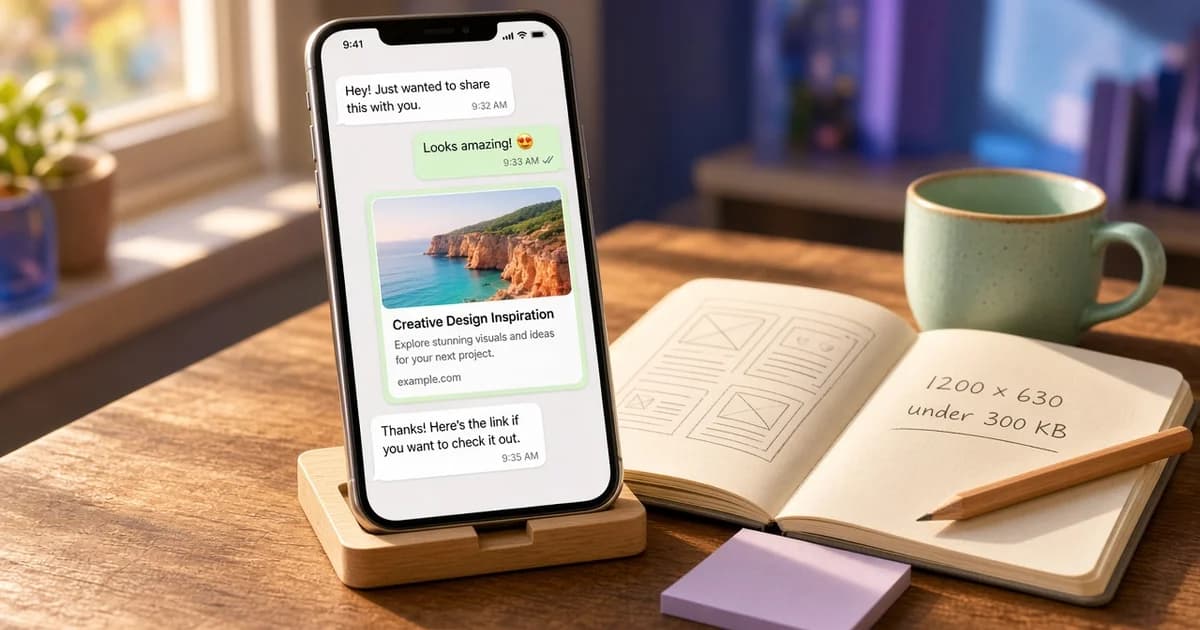
A WhatsApp link preview is the card that appears in a chat when a message contains a URL: a title, a short description, an image, and the domain. WhatsApp builds it from the page's Open Graph tags, so the same og:title, og:description, and og:image that shape a Facebook or LinkedIn card also shape this one.
Two things set WhatsApp apart. The image is more sensitive to file weight than on most platforms, and there is no public tool to refresh a cached card. This guide covers the tags, the image, the cache, and the reasons a preview does not appear.
Open Graph tags WhatsApp reads
An open graph WhatsApp setup needs only the basic tags. A typical setup for a page that will be shared in chats:
<meta property="og:title" content="Spring planting workshop, March 14" />
<meta property="og:description" content="A two-hour session on seed starting and bed preparation." />
<meta property="og:image" content="https://example.com/events/spring-workshop-1200x630.jpg" />
<meta property="og:image:type" content="image/jpeg" />
<meta property="og:image:width" content="1200" />
<meta property="og:image:height" content="630" />
<meta property="og:url" content="https://example.com/events/spring-workshop" />
<meta property="og:site_name" content="Field Notes" />- og:title becomes the bold line. Keep the key words first, because chat bubbles are narrow.
- og:description appears under the title in a line or two. The og:description guide covers writing it.
- og:image is the picture, shown wide or as a small thumbnail.
- og:url should match the canonical address of the page.
Paste the URL into the Open Graph checker to see an estimated WhatsApp card next to the tags it was built from. The card is an estimate, not a screenshot of WhatsApp.
Writing titles and descriptions for a chat
A chat bubble is narrower than a feed post, and the card sits between personal messages. That changes how the text should read:
- Put the subject first. "Spring planting workshop, March 14" survives a cut better than "Field Notes presents our spring workshop".
- Include the detail people ask about in chats, such as a date, a place, or a price that the template keeps current.
- Keep og:description to one short sentence. Longer text is often trimmed to a line or two.
- Leave the brand to og:site_name and the domain line, which already show where the link goes.
WhatsApp preview image: size and weight
The WhatsApp preview image follows the same shape as other large cards. 1200 x 630 pixels is the size most often used, and the subject should sit in the center, because some layouts crop the image to a square thumbnail.
File weight matters more here. WhatsApp does not publish an exact limit, but a commonly cited guideline is to keep the WhatsApp image size under about 300 KB. The too-large image guide covers how to shrink the file. Heavier files are more likely to be skipped or shown as a small thumbnail. A JPG at a moderate quality setting usually fits a 1200 x 630 photo well under that weight.
- Export at 1200 x 630, not at the full camera resolution.
- Use JPG for photos and PNG for flat graphics with text.
- Prefer JPG or PNG over WebP for the WhatsApp OG image, since some clients handle WebP less reliably.
- Check the final file size before publishing.
The OG image size tool crops and exports a 1200 x 630 JPG in the browser. The OG image guide explains the og:image tag and its formats in more detail. For a page with no picture of its own, the OG image generator can make a share image from a template and export it as a JPG or PNG.
How WhatsApp caches a preview
The card is attached when the message is composed. WhatsApp fetches the page, builds the preview, and sends it with the message. That has two effects:
- Messages already sent keep the card they were sent with, even after the page changes.
- New shares of the same URL can still show an older card for a while, because the preview data can be stored.
There is no WhatsApp equivalent of the Facebook Sharing Debugger. A common comparison is the same page with a harmless query string. A different card suggests the plain URL is still using a stored preview. The same card on both addresses does not, by itself, prove the HTML is unchanged: the fetch can be blocked, or the image URL can still point at the old file. About 300 KB remains a practical file-size target, not a limit WhatsApp publishes. The canonical URL stays unchanged for real shares.
WhatsApp link preview not showing: causes and fixes
When the WhatsApp link preview is not showing at all, the cause is usually on the page side:
- The tags are added by JavaScript. The fetch reads the first HTML response. Render the tags on the server.
- The image URL is relative or private. Use an absolute https URL that loads without a login.
- The image is too heavy. Compress it toward the 300 KB guideline.
- The page blocks the fetch. A firewall, a bot rule, or a login wall returns an error instead of the HTML.
- The page is slow. A page or image that takes a long time to respond may be skipped.
- The URL was typed without a scheme. Some clients need the full https:// address before they try a preview.
The OG image checker confirms whether the image URL resolves and loads, and reports the pixel size when it can be read.
WhatsApp compared with other platforms
The tags are the same as on Facebook and LinkedIn. The differences are in the layout and the cache. Chat bubbles are narrower than feed posts, so long titles are cut sooner. The compact thumbnail layout appears more often than on feed-based platforms. And because there is no refresh tool, getting the tags right before the first share matters more. The Open Graph preview guide shows how each part of a card maps to a tag across platforms.
Before sharing a link on WhatsApp
- Confirm og:title, og:description, and og:image are in the page source.
- Open the image URL in a private window. It should load quickly.
- Check the image is 1200 x 630 and under about 300 KB.
- Run the page through a checker and compare the estimated WhatsApp card.
- Send the link to yourself in a new chat as a final test.
Set the tags in the server HTML, keep the image light, then check the live URL in the Open Graph checker before the link goes into a group chat.