
Open Graph Preview & Tester
Learn what an Open Graph preview shows, which tags matter, and how to inspect a public page before you share the link with a client or team.
By Abid Ali, maintainer of OG Scope
Updated · First published
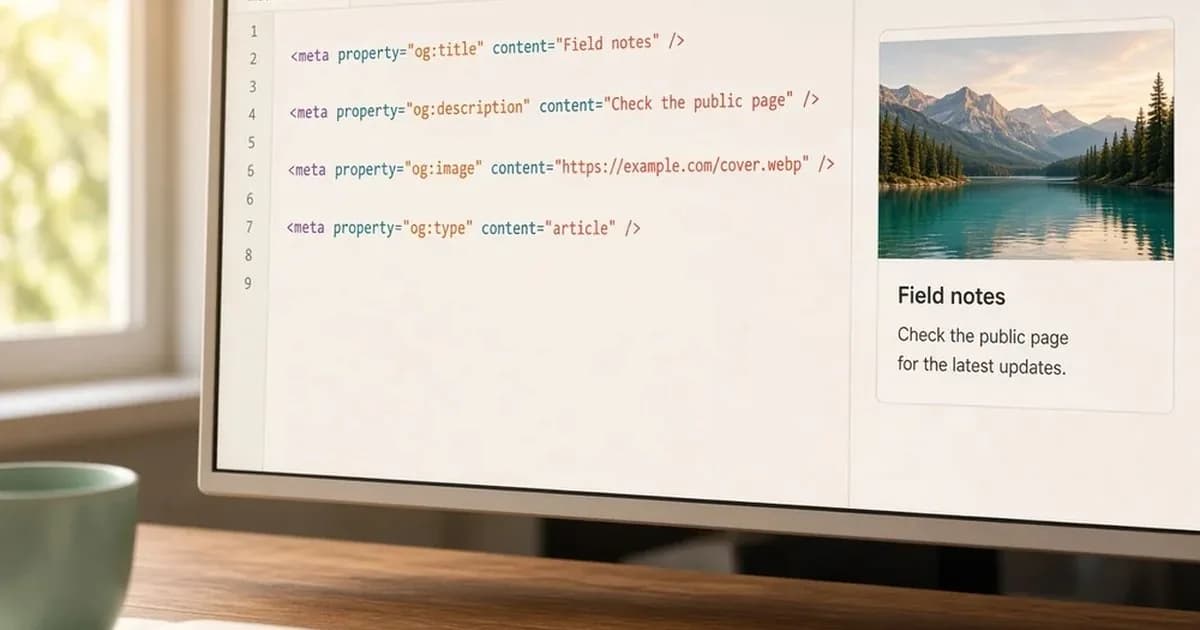
An Open Graph preview is the card that appears when someone pastes a website link into a chat, a post, or an email. This is not a screenshot of your page. The app reads a few lines from the public HTML and draws a title, a short text block, and a picture.
Check that card on the live URL before you send the link. A finished layout can still share an old headline or a blank image. This is for people who ship pages and need the card to match. Skip it if you only care how the page looks in a browser tab.
What an Open Graph preview uses
The card is built from Open Graph tags: meta tags in the document head where the page describes itself. The beginner guide explains what Open Graph is and where it came from. This page stays with the card.
A crawler requests the public address, stores what it finds, and often keeps that copy. Your fix can sit unseen until something asks for a fresh scrape.
Four tags do nearly all the work. The full list of Open Graph tags covers the rest.
og:title acts as the headline, while og:description is the short line beneath it.
The image tag points at a picture URL. A URL tag says which address the card belongs to.
The og type is easy to overthink. Use article on a post and website on a normal page. A wrong og type almost never ruins the card. A missing picture does.
When someone says a link preview looks wrong, they usually mean the picture, the headline, or the line under it. Leave one of those tags empty and the app guesses, often with a random photo or a title that was never written for sharing.
Write the four tags on purpose
The og:title should be the line you want on the card, not a brand-stuffed browser tab. In the page source it looks like this:
<meta property="og:title" content="Guide on Open Graph Preview" />Stay near 60 characters. Longer strings get cut mid-thought.
That social line is not your meta description. The meta description is the snippet a search result may show.
og:description is the snippet on the card. They can share a sentence. They should not share a pile of phrases.
Write the card line for someone deciding whether to tap. Many templates copy the meta description into the social tag, which holds until the snippet reads like an ad.
The Open Graph image is the file URL you declare in og:image, not the first photo in the article and not a CSS background. The OG image guide covers the tag in full.
The open graph image has to be an absolute https address a stranger can open. The og image fails in three dull ways: a relative path such as /cover.webp, a file behind a login, or a CDN link that expires.
Put the address, the type, and the image beside the title:
<meta property="og:url" content="https://example.com/guide-on-open-graph-preview" />
<meta property="og:type" content="article" />
<meta property="og:image" content="https://example.com/covers/guide-on-open-graph-preview.webp" />
Those three lines are the meta properties og:url, og:type, and og:image. With the title, that set is the og data a crawler stores.
Skip extra tags until these four are in the first HTML response. A tag that appears only after JavaScript runs is invisible to most social crawlers. They do not execute your app. On a client-rendered site, set the tags on the server.
Count og:title in view source. You want one. Two copies, and the crawler picks a winner you did not choose.
X reads Twitter card tags when they exist. If they do not, it falls back to your og tags. Add the Twitter set only for a different crop or the large summary card (summary_large_image).
Size the picture before you rewrite the sentence
OG image size is the check to run before you polish the description again. Apps crop. They do not pad your screenshot.
Export 1200 x 630 pixels when you can, about 1.91:1. Around 600 x 315 can pass, and it goes soft when the card is large. Keep the file well under a few megabytes. A huge PNG is a common reason the picture never appears.
Keep the subject in the center. Type on the image has to be large.
JPEG, PNG, and WebP are the safe formats. WebP counts when the response is an image, not an HTML error. Skip SVG unless the file states its width and height in pixels. Support is uneven, and a size can be read only when those pixels are explicit.
When you replace the picture, change the URL. Same address, new bytes, old card.
Open the image URL in a private window, or pass it through an OG image checker. You want status 200, an image content type, and no redirect to a login page. A logged-in browser hides this: the page looks complete to you and empty to the bot.
Check the public page, not the draft
Do this on the production URL. Localhost is not visible to Facebook, LinkedIn, or X.
So you can run the live URL through the Open Graph checker without publishing a test post.
- View source and search for
og:. Title, description, image, and url should be there, and the image and url must be absolute. - Open the image URL in a private window.
- Paste the page into a preview tool. Facebook has the Sharing Debugger and LinkedIn has Post Inspector, and both can refresh their cached copy. X no longer offers a public card preview tool, so a test post from a private account is the closest check there.
- Read the scraped tags before the mock card. The system stored the scrape. The card is the crop.
- If the HTML changed and the old card remains, rescrape once. Ten clicks will not fix a bad image URL.
An Open Graph debugger and an Open Graph checker are the same job: fetch the public HTML, list the og tags, show a card. A meta tags analyzer lists the document title, canonical link, robots rules, and Open Graph together. That pass has a box for a URL. Use it when the head is crowded and you cannot tell which tag is winning.
Treat the search snippet and the share card as two jobs. Fixing the meta description leaves a blank og:image blank. Read the scraped tags, including the image URL, before you trust a painted mock.
Same tags, different cards
The social media preview is not one picture reused everywhere.
A Facebook link preview caches hard. The facebook debugger shows the stored scrape and can request a new one. An old post can keep the old image even after that scrape looks current. New shares pick up the fresh copy.
A LinkedIn preview is strict about whether its crawler can fetch the image. Block the bot and you get text with no picture. Post Inspector says so more clearly than the post box.
A Twitter preview reads Twitter card tags first, then Open Graph. A tiny icon will not fill the large summary card.
Use the Twitter card checker to see which tags it read. A third-party mock is fine for a glance. If the share matters, validate on that network.
Slack, iMessage, Discord, and WhatsApp keep their own caches and often have no refresh button. Get the tags right before the first share. If a bad image already went out, change the image URL. The guide to WhatsApp previews covers that cache and the image weight chats prefer.
Campaign parameters on a pasted link, plus a cleaner address in og:url, usually link the card to it. Test the URL you will actually send.
Before you send the link
On that URL:
og:titleis the headline you want, short enough for a narrow column.og:descriptionis a sentence for a person.og:imageis about 1200 x 630, absolute, and opens in a private window.og:urlis the public address.- One scrape shows those values, not an older set.
If the scrape matches and one app is still stale, you are looking at a cache. Rescrape, or change the image URL when the picture is what changed.
Put the four tags in the first HTML response, confirm them on the public page, and look at the card in the app you are about to use. The page can be solid and the Open Graph preview can still be wrong. Check it, then share.