

What Is an OG Image? The og:image Tag Explained
An OG image is the picture a link shows when shared. See how the og:image tag works, the size and format to use, and why the image sometimes does not appear.
By Abid Ali, maintainer of OG Scope
Updated · First published
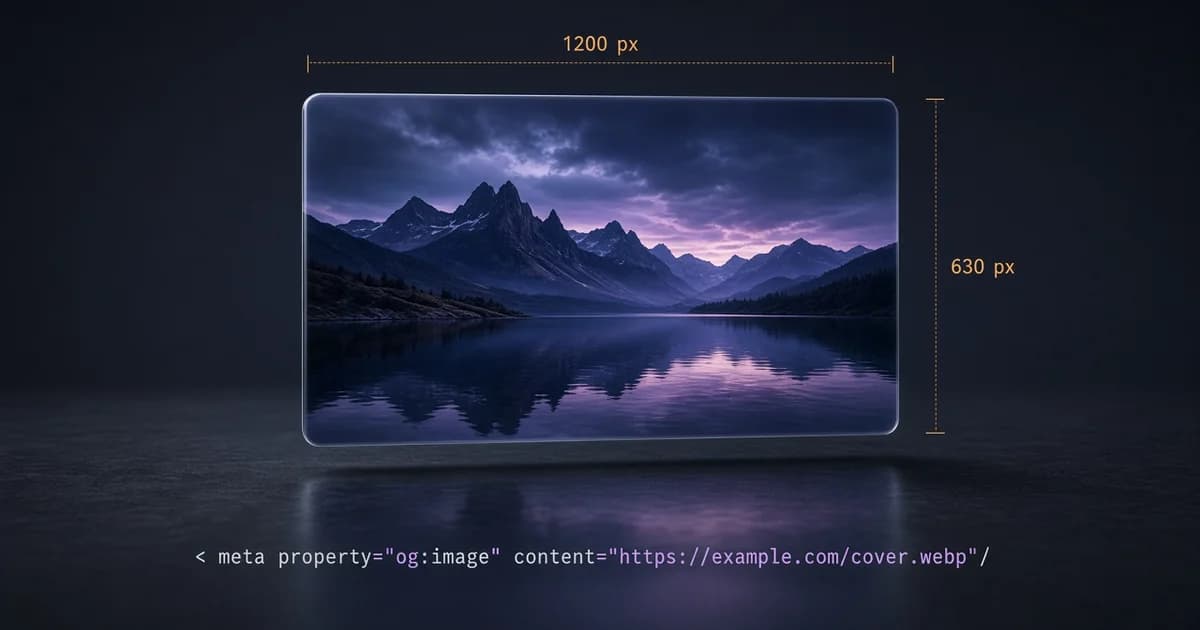
What is an Open Graph image? It is the picture that appears on a link preview card when a page is shared on Facebook, LinkedIn, WhatsApp, Slack, Discord, or a similar app. The page names that picture in one meta tag in its HTML head:
<meta property="og:image" content="https://example.com/covers/wet-week.webp" />So the short answer to "what is an OG image" is: the file that the og:image tag points to. On a large card it takes up most of the space, which makes it the part of the preview people notice first. When the tag is missing or the file fails to load, the card often shows no picture at all.
This guide covers how the OG image tag works, the size and format to use, the extra image tags, and the reasons an image does not appear.
How the og:image tag works
The og:image tag is a meta element with property="og:image". Its content value is the full URL of the image file. When a link is shared, the platform's crawler reads the page HTML, finds the tag, downloads the file from that URL, and places it on the card.
Three conditions decide whether that works:
- The URL is absolute, starting with https://, not a relative path such as /covers/wet-week.jpg.
- The file is public. It loads without a login, a cookie, or a signed link that expires.
- The tag is in the HTML the server returns. Many crawlers do not run JavaScript, so a tag added by a script can be missed.
Paste the page URL into the Open Graph checker to see the og:image it reads, the resolved file URL, and whether the file loaded.
Missing og:image? How to fix it
The checkers report this as "OG image missing" or "Open Graph image is missing." Without the tag, an app may pick a random photo from the page body, or show a card with no picture at all.
The fix is one og:image line in the server HTML that meets the three conditions above: an absolute https URL, a public file, and a tag present before any script runs. A page with no suitable picture can use a generated 1200 x 630 image, covered below. Run the checker again to confirm the file loads. The OG image not showing guide lists the file and cache failures that remain after the tag is present.
The right open graph image size
The Open Graph protocol does not set a size. In practice, 1200 x 630 pixels is the OG image size most often used for a large link preview. It has a wide shape, about 1.91 to 1, that matches large cards on many platforms, and it is big enough to look sharp on high-density screens.
- Keep the subject centered. Platforms crop the image to their own frames, and some chat apps show a square thumbnail.
- Use large text, or none. Small type is unreadable on a phone-sized card.
- Avoid very small files. A tiny image may be shown as a thumbnail or skipped. OG Scope warns when either side is under 200 pixels.
- Keep the file light. Some apps, WhatsApp among them, can skip a heavy image. The WhatsApp link preview guide covers that case.
The OG image size tool crops and resizes an image to 1200 x 630 in the browser and exports JPG, PNG, or WebP. For a page with no photo, the OG image generator draws one from a title, colors, and a logo. For finished cards by page type, see the OG image examples.
Which file format to use
JPG, PNG, and WebP are widely supported. JPG suits photos and keeps files small. PNG suits flat graphics, logos, and text. WebP is smaller again, though some older chat clients and crawlers handle it less reliably, so a JPG or PNG copy is the safer choice for the open graph image when every app matters. GIF and SVG are weak choices for the tag.
Transparent PNG files need care. Apps draw the card on their own background, so a transparent logo can sit on white in one app and on a dark theme in another. A solid background keeps the image readable everywhere. Each page should also have its own image. One site-wide picture on every card makes different links look identical in a feed.
Extra image tags: width, height, type, and alt
The og:image tag can be followed by structured properties that describe the file:
<meta property="og:image" content="https://example.com/covers/wet-week.jpg" />
<meta property="og:image:type" content="image/jpeg" />
<meta property="og:image:width" content="1200" />
<meta property="og:image:height" content="630" />
<meta property="og:image:alt" content="Rain-soaked raised beds with new seedlings." />
Width and height let a platform lay out the card before the download finishes. The type names the format. The alt text describes the picture. All four are optional, and they must come after the og:image they describe. The Open Graph tags cheat sheet lists every image property with code.
Common og image meta tag mistakes
<!-- Relative path: often fails -->
<meta property="og:image" content="/covers/wet-week.jpg" />

<!-- name instead of property -->
<meta name="og:image" content="https://example.com/covers/wet-week.jpg" />

<!-- Correct -->
<meta property="og:image" content="https://example.com/covers/wet-week.jpg" />- A relative path. The crawler cannot always resolve it. Use the full https URL.
- name instead of property. A meta og image written with
nameis a common copy-paste slip. Open Graph tags useproperty. - A file behind a login or a firewall. The crawler gets an error page instead of the image.
- Two og:image tags from two plugins. The platform may pick the wrong one. Keep one source, with the main image first.
- Only twitter:image. X reads it, but other platforms look for og:image.
Why the image does not appear
When a card shows no picture, the cause is usually one of the mistakes above, or a cache. Platforms store the image they fetched, so a replaced file can stay hidden behind the old copy. Publishing the new image at a new URL avoids that, because the platform sees a file it has not fetched before. Facebook also offers the Sharing Debugger to request a new fetch, as the Facebook link preview guide explains.
The <meta property="og:image"> line can be correct while the file still fails: a slow server, a redirect loop, or a content type the platform does not accept. Opening the image URL in a private browser window is a quick first test.
Check the OG image on a live page
- Open the page source and search for og:image.
- Copy the URL and open it in a private window. It should load.
- Confirm the size is close to 1200 x 630 and the subject is centered.
- Run the page URL through the OG image checker, which reports the resolved URL, whether the file loaded, and the pixel size when it can be read.
Set one og:image with an absolute https URL, export it at 1200 x 630, then check your OG tags on the live page before sharing it.