

The OG image size is the pixel width and height of the file named by og:image. The Open Graph image size most often used for a large link card is 1200 by 630, written 1200x630. This page lists common frames and crops a picture in the browser. The file is not uploaded.
The card a person sees can still differ. Facebook, LinkedIn, X, WhatsApp, Slack, Discord, and Telegram can crop, shrink, or skip the image. The frames on this page are estimates. OG Scope is not affiliated with those products.
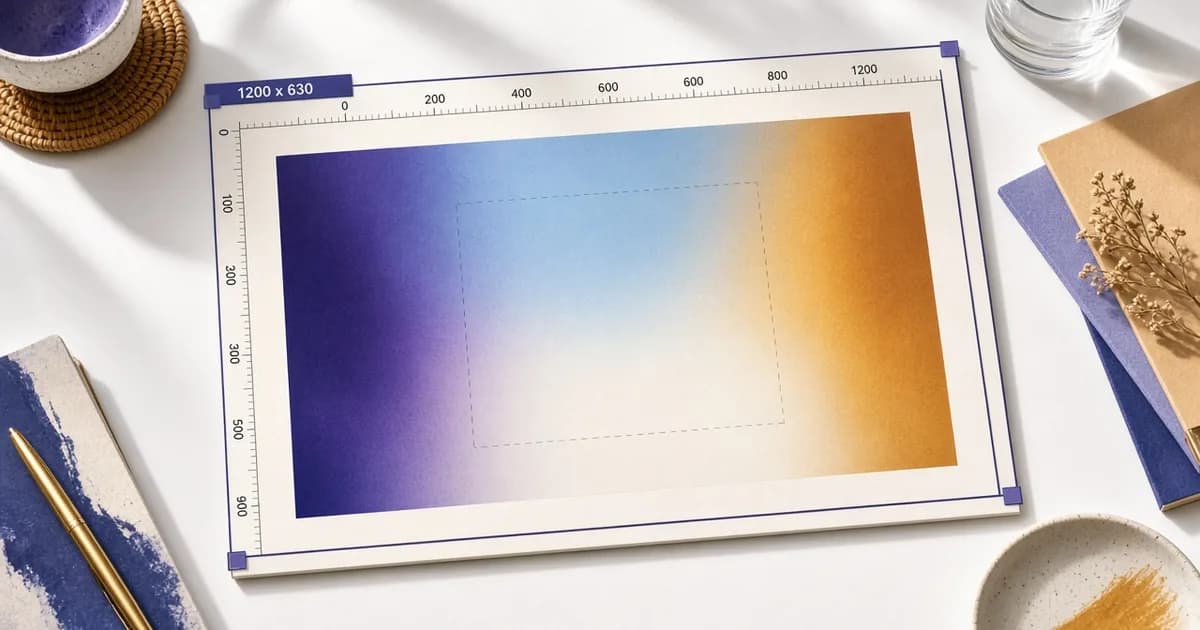
OG image sizes at a glance
| Preset | Export size | Ratio | Typical use |
|---|---|---|---|
| Recommended | 1200 × 630 | 1.91:1 | og:image for Facebook, LinkedIn, and most large link cards |
| WhatsApp, Slack | 1200 × 630 | 1.91:1 | Chat previews and unfurls that read the same tag |
| X large | 1200 × 675 | 16:9 | twitter:image with summary_large_image |
| Square, X summary | 1200 × 1200 | 1:1 | summary cards and square thumbnails |
| Pin | 1000 × 1500 | 2:3 | A tall image, not an Open Graph size |
These are the sizes this tool exports. Each platform decides its own crop, so the table is a starting point, not a list of platform rules.
Recommended OG image size
1200 × 630 is the recommended size for a wide card. The ratio is about 1.91 to 1. Both sides clear the 200 px floor this site uses when it reads an image, and they clear the common large-preview floor of 600 by 315. A smaller file can still appear. It often looks soft once a feed stretches it.
OG image dimensions are the width and height in pixels, not the file's kilobytes. A heavy JPG at 1200 × 630 can be a slower fetch than a lighter WebP at the same pixel size. Set the pixels first, then read the download size this page reports.
The recommended preset exports those pixels exactly. Custom can go from 200 to 4096 on each side when a page needs a different frame. Free unlocks the ratio and exports the cropped pixels, with the long side held to 4096.
Platform size notes
Facebook often uses a wide crop for a shared link, and 1200 × 630 matches that wide frame. Facebook can still crop the edges, keep an older file, or show no image. This page does not control that result.
The Facebook link preview guide covers the tags and the cache.
LinkedIn commonly reads the same Open Graph image, so 1200 × 630 is a practical target for a large LinkedIn card too. LinkedIn can crop the edges, so the subject belongs in the center.
The LinkedIn preview guide lists the fields that card reads.
A large X card is often closer to 16:9. This tool's large preset exports 1200 × 675. The summary preset exports a square, 1200 × 1200. The Twitter card image size is not one number: summary and summary_large_image ask for different frames, and X can fall back to the Open Graph image when a Twitter image tag is missing.
The Twitter card checker shows which of those tags a page published.
WhatsApp, Telegram, Slack, and Discord can show a wide image in a chat or an unfurl. The WhatsApp and Slack presets here export 1200 × 630. There is no single social media preview image size. Each app can crop, shrink, or omit the picture. The guide to the WhatsApp preview image size covers file weight and why some chats show only a thumbnail.
The pin preset is optional. It exports 1000 × 1500, a 2:3 frame. It is not an Open Graph size. Use it only when the picture should be tall.
Safe zone and cropping
Crops differ. A word on the left edge can vanish in one app and survive in another. This tool draws a center safe zone about 10% in from each edge of the crop. Put the title, the logo, and the main subject inside it. The zone is a guide on this page. It is not a promise of any platform's crop.
Drag the rectangle to move it. Drag a corner to resize. The ratio stays locked unless Free is selected. Scroll zooms the source under the crop. A pinch does the same on a touch screen. Reset crop returns the largest frame of the current ratio.
An Open Graph preview is the whole card, not only the crop. Read that guide when the title and description matter as much as the picture.
Formats
JPG, PNG, and WebP are the formats this tool exports, and they are widely supported for og:image. JPG is a sound default for a photo. PNG keeps a sharp logo and a transparent edge, though a transparent edge can turn into an unexpected color in a feed. WebP is often smaller at a similar look. The quality slider applies to JPG and WebP. PNG ignores it. The default quality is 0.85.
Skip GIF when the card should be a sharp still. Animation is a poor fit for a link image, and a GIF at this pixel size is often heavy. Skip SVG. Support is uneven, and many crawlers expect a raster file. HEIC is refused here. Convert that photo to JPG, PNG, or WebP first.
How to use this crop tool
Start with a JPG, PNG, or WebP under 15 MB. Drop the file, choose it, or paste it while no text field is focused. The original width, height, type, and approximate size appear above the canvas. The image is drawn in the browser only.
Choose a preset. Recommended, WhatsApp, and Slack set 1200 × 630. Square and X summary set 1200 × 1200. X large sets 1200 × 675. Pin sets 1000 × 1500. Custom takes a width and a height from 200 to 4096. The checklist marks a pass when both sides are at least 200 px, a warning when the width is under 600 or the height is under 315, and an ideal note at 1200 × 630.
To export, pick PNG, JPG, or WebP and press Download. The file name is og-image, the pixel size, and the extension, such as og-image-1200x630.jpg. Copy size checklist when those notes should travel with the file.
A page with no suitable photo can start from text instead. The OG image generator draws a 1200 x 630 image from a title, a theme, and a logo.
After you export
Host the file where a crawler can fetch it. The og:image value should be an absolute https URL, not a root-relative path such as /cover.jpg. When the picture is replaced, change the URL. New bytes at the same address are a common reason an old card stays up.
Run that URL through the OG image checker. It reports whether the file loaded and the pixel size when the format exposes one.
Paste the page URL into the Open Graph checker when you want the estimated cards for the tags around that image. Those cards are estimates from the public HTML. They are not screenshots of a platform.
Add og:image in Next.js, React, and Vue
Every framework has to end up with the same thing: the tags in the HTML the server sends, with absolute URLs. Most link preview crawlers do not run JavaScript, so a tag added only in the browser is often missed.
In the Next.js App Router, set the image in the page's metadata export. With metadataBase set in the root layout, a relative path becomes an absolute URL in the HTML.
// app/blog/field-notes/page.tsx
export const metadata = {
  openGraph: {
    images: [
      {
        url: "https://example.com/og/field-notes.jpg",
        width: 1200,
        height: 630,
        alt: "Field notes cover",
      },
    ],
  },
};
Next.js also accepts an opengraph-image.jpg (or .png) file placed next to page.tsx, and writes the tags for it. The Next.js Open Graph images guide covers the static file, the metadata array, and a generated image.
A React app rendered only in the browser, such as a Vite or Create React App build, sends the same index.html for every route. Put the tags in that file for a site-wide image, or render the pages on a server (Next.js, Remix, or prerendering) when each page needs its own image.
<!-- index.html -->
<meta property="og:image" content="https://example.com/og/home.jpg" />
<meta property="og:image:width" content="1200" />
<meta property="og:image:height" content="630" />
<meta name="twitter:card" content="summary_large_image" />
In Nuxt, useSeoMeta writes the tags during server rendering. A plain Vue single-page app has the same limit as a browser-only React app: the tags belong in index.html or in prerendered pages.
<script setup>
useSeoMeta({
  ogImage: "https://example.com/og/field-notes.jpg",
  ogImageWidth: 1200,
  ogImageHeight: 630,
  twitterCard: "summary_large_image",
});
</script>
OG image problems and fixes
OG image not showing
The most common causes are a relative og:image path, a URL that returns an error or a login page, a file that is blocked for crawlers, and a tag that exists only after JavaScript runs. Paste the page into the Open Graph checker: its image check shows the resolved URL and whether the file loaded.
The wrong image appears
A page can publish two og:image tags, often one from a theme and one from a plugin, and a platform may take the first. The card can also be an old cached copy. Remove the extra tag, change the image URL after replacing a file, and request a new fetch in the platform's own debugger.
The image looks blurry
A small file is stretched to fill a large card. Export at 1200 × 630 or larger, and avoid saving a JPG again and again, which adds compression each time.
Text or a logo is cut off
The platform cropped the edges, or the file is not close to 1.91:1. Use the matching preset and keep words and logos inside the safe zone. When the share image needs a title on it, the OG image generator keeps text inside a 1200 × 630 frame.
Store product images are covered in the guide to Shopify product images and Open Graph tags, and the tag itself in the guide to the og:image tag.
Common mistakes
- Exporting a side under 200 px.
- Placing type or a logo outside the center safe zone.
- Expecting this page to convert HEIC. It does not.
- Publishing a GIF or an SVG as the share image.
- Leaving
og:imageas a root-relative path. - Replacing the file without changing the URL.
- Treating the estimate cards as the live Facebook, LinkedIn, or X render.