
Guide
OG Image Safe Zone: Keep Text Out of the Crop
Put titles and logos inside the center of an OG image. Apps crop different ratios, and a 10 percent inset is a layout aid, not a platform rule.
By Abid Ali, maintainer of OG Scope
Published
An OG image safe zone is the middle of the picture, where a title or a logo still shows after an app crops the file. The edges are the part that changes. Facebook and LinkedIn document a wide frame near 1.91:1. X documents a wider 2:1 frame for its large card. A square crop, used by some compact cards, cuts the left and right instead. One file cannot satisfy every crop, so the words have to sit where those crops overlap.
The OG image guide covers what og:image is. This page is where to put type on that file.
What gets cut
A link preview crop is not a promise that the whole file appears. The size tool states that each app can crop, shrink, or omit the picture. A word on the left edge can vanish in a square frame and survive in a wide one. A word on the top edge can vanish when a wide frame is shorter than the file.
Facebook's sharing guidance, as used on the Facebook link preview page, asks for a picture close to 1.91:1 and at least 1200 × 630 for a large display on high-resolution devices. At 1200 pixels wide, that ratio is 630 pixels tall. LinkedIn's sharing module asks for a minimum of 1200 × 627 and the same 1.91:1 ratio. Those two frames are almost the same shape. Text that is already clear at 1200 × 630 is in the right family for both. Fine type at the edge is still the part a tighter crop removes.
X's summary card with a large image is 2:1. At 1200 pixels wide, that is 1200 × 600, which is 30 pixels shorter than 1200 × 630. The Twitter card checker page is where the card type is chosen. The extra height on a 1200 × 630 file is the strip a 2:1 crop can take from the top, the bottom, or both. Do not put a one-line title in that strip.
The center inset
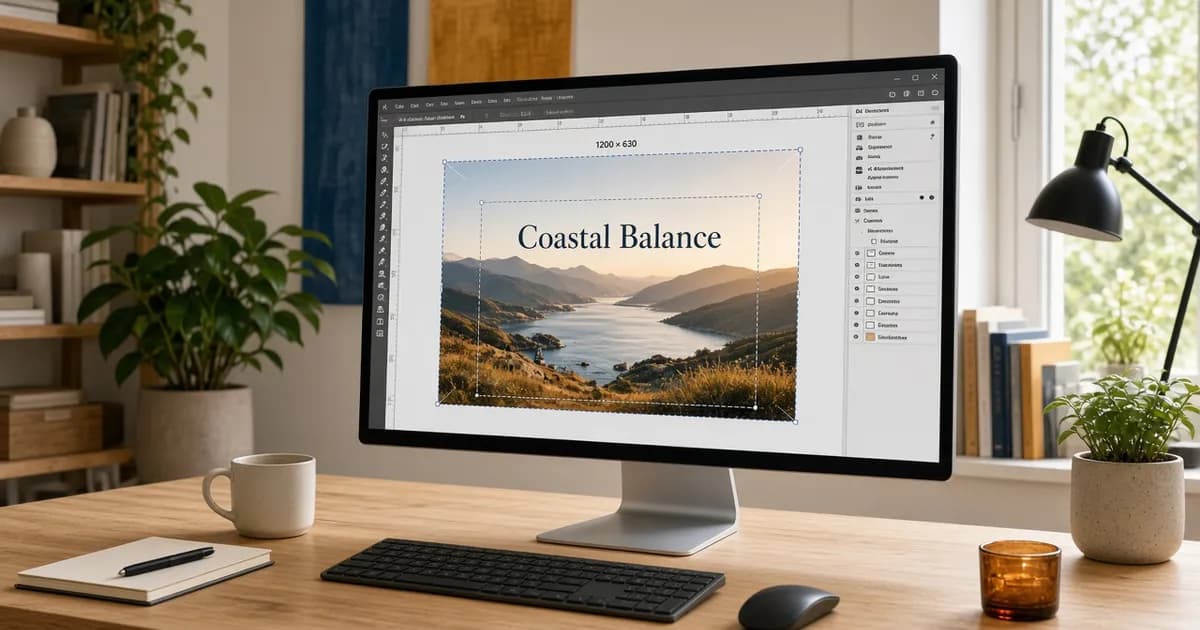
The OG image size tool draws a safe zone about 10 percent in from each edge of the crop you selected. Put the title, the logo, and the main subject inside it. The zone is a guide on that page. It is not a crop ratio Facebook, LinkedIn, or X publish, and it is not a guarantee that an app will keep everything inside the rectangle. Chat apps can shrink the file or show a thumbnail. They do not publish the same 1.91:1 or 2:1 figures. A subject in the center still survives a square or a narrow card more often than a subject on the edge.
Ten percent of 1200 is 120 pixels on the left and the right. Ten percent of 630 is 63 pixels on the top and the bottom. The inner box is about 960 × 504. That arithmetic describes the overlay. It does not describe a second image size you must export. Export the full frame, usually 1200 × 630, with the important pixels already inside the middle.
Dragging the crop in the size tool changes which part of a source photo is kept. The inset is redrawn on that crop. A photo with the subject on the far left still fails if the crop you chose is the empty right side. Move the frame until the subject is inside the band, then export.
Where to put type
Center the headline, or keep it in the inner box, with padding on every side. A logo in a corner is the first thing a square crop or a side crop removes. If the logo has to appear, place a second, smaller copy nearer the center, or accept that some cards will drop it.
- One short line, large enough to read at card size.
- High contrast against the photo, not a thin white word on a bright sky.
- No essential word within a tenth of any edge.
- No border, crop marks, or URL pasted along the bottom.
The OG image generator builds a file from a template. Its how-to stays on that page. Use it to set the words, then look at the result in the size tool before you publish the URL. A template that already centers the title is doing the safe-zone job. A template that pins text to a corner is not.
Background detail can run to the edges. Texture, color, and parts of a scene are what the crop is allowed to trim. The test is simple: hide the outer tenth of the picture and see whether the title still reads. If it does not, move the type in. A 1200 x 630 export is the usual full frame around that centered type.
Check the live file
After the image is on a public https URL, open the page in the Open Graph checker and read the image panel: the published URL, whether the file loaded, and the pixel size when the format exposes it. A 1200 × 630 file can still be the wrong composition. The pixel check confirms the frame. The safe zone check is visual, on the file itself, before the link is shared.
Cards on this site are estimates. They show the whole image more often than a platform crop does. A preview that looks complete can still lose a corner once Facebook, LinkedIn, or X applies its own frame. Design for the overlap, then share.
Check the live URL
Paste the page into the Open Graph checker to see the tags the server sends.
Open the Open Graph checker