
Guide
Wix Open Graph Tags: Social Share Settings and Checks
Where Wix sets the Open Graph title, description, and image for a page or the whole site, and how to check those tags on the published page URL.
By Abid Ali, maintainer of OG Scope
Published

Wix Open Graph tags are the title, description, and image a social network reads when a page is shared. Wix calls the place you edit them social share settings. The Wix social share fields can follow the SEO title, or they can be written for the card. A preview inside the editor is not the same thing as the tags on the published URL.
Wix's social share article, updated 18 November 2026, says the SEO title and meta description are used for og:title and og:description unless you replace them. The same article says a network uses its own rules to pick a title, description, and image, so the saved fields are likely to be used and are not a guarantee. The published page is still the place to confirm what was actually sent.
Social share settings in the dashboard
The dashboard path in that article is for a page type, not one URL at a time. Go to SEO & GEO, then Tools and settings, then SEO Settings. Select the page type you want to edit. Wix notes that the list only includes types the site actually has. A store can show Products. A site without a store does not.
Click Edit next to Basics & social share, then scroll to Social share. Static text applies the same title and description to every page of that type. Variables apply a rule so each page can fill in its own value. By default, og:title is the title tag from SEO Basics, and og:description is the meta description from that same section.
The fields Wix lists there are the share title, the share description, and the image. The image can be a variable, so each page gets its own file, or one image URL used for every page of that type. The article's tip for a file already on the site is Get an Image URL from Site Files, then More Actions on the image, then Copy URL. Save when the fields are set.
Wix recommends keeping the share title below 80 characters and the share description below 300, and says a longer value may be truncated. Those are Wix's limits for the fields, not a promise about how many characters a network will draw. The preview next to the fields is Wix's own sketch of the card.
The image in the Wix Editor
A single page image is set in the Editor, in a different article. Wix's Editor image article, updated 25 January 2026, says you can set a different image for each page or one image for the whole site. For one page: Pages & Menu, More Actions on that page, Social share, Upload Image, choose or upload the file, Add to Page, then publish. The same social share screen is where that article says you can set the page's og:title and og:description.
For one image on every page: site settings, Site and Domain, Website settings, General social image, Upload Image, then Add Icon, Save, and publish from the Editor. The article's FAQ says that if a page has no image of its own, the site image is what appears when the page is shared. A blog post can use a cover image for how that post is displayed on Facebook. The article does not give a separate click path for the cover, so the post's social share image is the setting to confirm.
A Wix social image should follow the size article Wix publishes for this file. That size article, updated 12 February 2026, says the figures come from Facebook sharing guidance and that Wix applies them to these images generally: an aspect ratio of 1.91:1, 1200 by 630 pixels, no larger than 8 MB, a minimum of 200 by 200, and at least 600 by 315 so the preview is not the small image. The Open Graph image size section records Facebook's own images page, which is the source Wix is pointing at. The same Wix article says a WhatsApp preview of a shared URL is shown only when the image is under 300 KB. Weight for that chat app is covered in the WhatsApp image size guide.
The X card in the same settings
Under the Open Graph fields, the social share article has an X section. Static text or variables work the same way. By default, x:title is the og:title from Social share, and x:description is the og:description. You can choose Large or Small for the card, and you can set an X title, description, and image of their own. An image variable gives each page a different X image. One image URL uses the same file for every page of that type. Save after the change.
Large and Small are Wix's labels. The tags those sizes correspond to, summary and summary_large_image, are in the Twitter card guide. Wix does not say that choosing Large writes a specific tag name in that article, so the published HTML is the check, not the label in the form.
What usually breaks
The first break is a site image on a page that should have had its own. The Editor FAQ is explicit: no page image means the site image is shared. A product or a post then shows the site image. Set the page image, or a variable that points at that page's file, and publish again.
The second is a title that is right in SEO Basics and wrong on the card. The social share title is a separate field that starts as a variable pointing at the SEO title. Static text typed over that variable will not follow later edits to the SEO title. Put the variable back when the two lines should stay the same.
The third is an old card. The HTML can be new while Facebook still shows the previous image. Wix's size article says to enter the site URL in the Sharing Debugger after an image update. That article also names the X Card Validator, the Pinterest debugger, and LinkedIn Post Inspector for other networks. Each of those tools is the network's own. They are not a substitute for reading the tags in the page.
The fourth is checking the editor preview, or a dashboard that was saved and not yet what the public URL returns. A crawler requests the published address. If the page type you edited is Products, check a product URL, not only the homepage.
Check a published URL
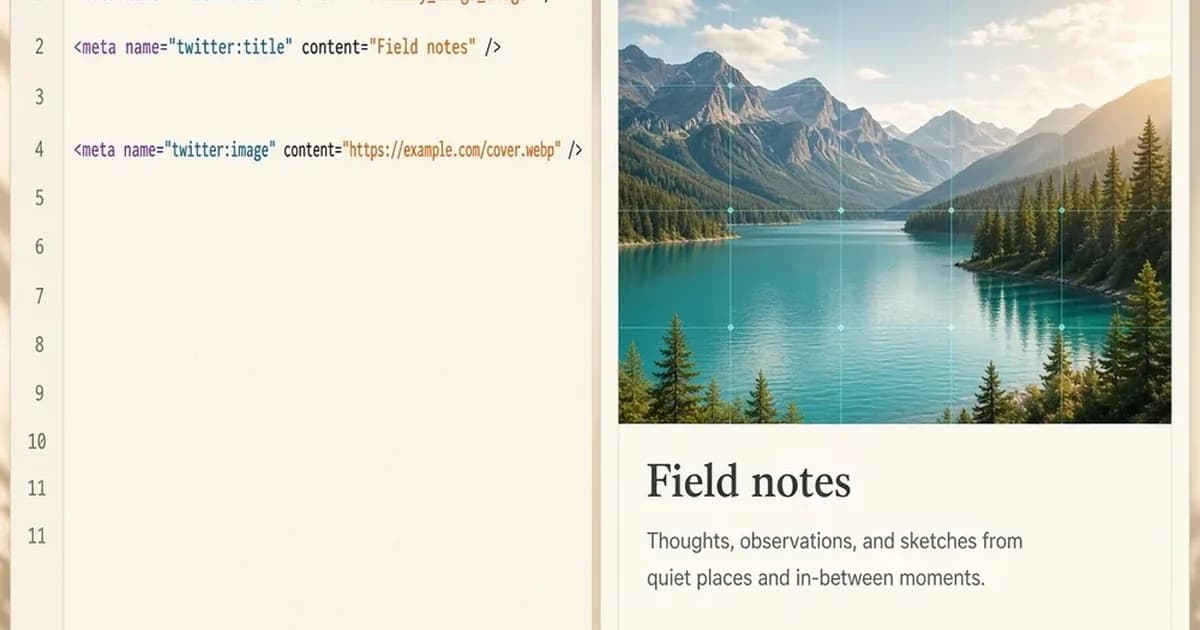
Publish, copy the public https URL, and view the page source. Search for og:title, og:description, and og:image. A page that has been set up looks like this:
<meta property="og:title" content="Ceramic bowl on a wooden table" />
<meta property="og:description" content="A handmade bowl with a warm glaze, in two lines." />
<meta property="og:image" content="https://example.com/images/bowl-1200x630.jpg" />
The image value should be an absolute URL that returns the file. Then paste that same URL into the Open Graph checker. It reads the public HTML and shows an estimated card. The estimate is not a screenshot of Facebook, X, or LinkedIn, and it does not replace the debugger Wix tells you to use after an image change.
Repeat the check for one page of each type you edited. A rule saved on Products does not change a blog post, and a site image does not tell you that a page image failed to publish. The row you care about is the one on the URL you are about to share.
Check the live URL
Paste the page into the Open Graph checker to see the tags the server sends.
Open the Open Graph checker